
Download Lazesoft Recover My Password – Password Recovery Tool for Windows
Overview – Why Lazesoft Recover My Password Stands Out
Losing a password can feel like hitting a dead‑end on a busy road: you’re forced to stop, rethink, and hope for a quick detour. Lazesoft Recover My Password is built exactly for those moments when you need an immediate, reliable solution to regain access to your Windows environment. Designed for both personal users and corporate IT departments, the software boasts a 100 % recovery claim, meaning that, under normal circumstances, it can reset any local or domain administrator password without data loss.
The tool works on 32‑ and 64‑bit Windows platforms, supports bootable CD and USB media, and integrates a clean, wizard‑driven interface that guides even novice users through the recovery process. In addition to password reset, Lazesoft adds capabilities such as disabling password expiration, locking or unlocking specific accounts, and managing a wide range of hard‑drive types—including IDE, SCSI, SATA, and RAID. All these features are packaged with a straightforward licensing model that imposes no distribution limits, making it a cost‑effective choice for businesses that need to handle multiple workstations.
From a security perspective, Lazesoft Recover My Password follows best practices by operating in a read‑only boot environment. This ensures that the original OS partition remains untouched until the user explicitly applies changes, reducing the risk of accidental corruption. The software also signs its executables with a digital certificate, which helps Windows Defender and other antivirus solutions recognize it as a trusted application. Frequent updates are released to keep pace with the latest Windows patches, guaranteeing that the tool remains functional on newly released OS builds. Whether you are a home user who locked yourself out of a personal laptop or an IT manager dealing with a forgotten domain admin password, Lazesoft offers a professional‑grade, secure, and fast pathway back into your system.
Key Features and Advanced Capabilities
- 100 % password recovery success rate for local and domain administrator accounts.
- Bootable media support – create recovery CD or USB with a single click.
- Compatibility with both 32‑bit and 64‑bit Windows operating systems.
- Ability to disable password expiration policies.
- Lock or unlock specific user accounts directly from the recovery environment.
- Support for a broad range of storage controllers: IDE, SCSI, SATA, and RAID.
- No licensing caps – unlimited installations and redistributions.
- Secure, signed executables to avoid false‑positive detections.
- Multi‑language interface for global deployment.
- Automatic update checker to keep the tool current with Windows releases.
Password Reset Engine
The core engine works by loading the Windows SAM (Security Account Manager) file from the offline system, decrypting the stored hash, and replacing it with a new password hash generated on the fly. This method eliminates the need for third‑party cracking tools, offering a clean and direct reset that leaves user profiles and file permissions intact. Because the process occurs outside the running OS, there is no risk of interfering with active services or causing system instability.
Account Management Utilities
Beyond simple resets, Lazesoft includes a suite of account management utilities. Administrators can toggle the “Password never expires” flag, which is particularly useful in environments where service accounts must remain active indefinitely. The lock/unlock feature provides a quick way to temporarily suspend a user without deleting the account, offering an extra layer of control for security teams.
Hardware Compatibility Layer
In many corporate settings, servers and workstations are equipped with RAID controllers or legacy IDE drives. Lazesoft’s built‑in drivers ensure that the recovery environment can see and interact with these disks, regardless of the underlying hardware. This eliminates the need for separate driver packs or manual configuration, streamlining the recovery workflow for IT staff.
Installation, Usage Guide, and System Compatibility
Step‑by‑Step Installation
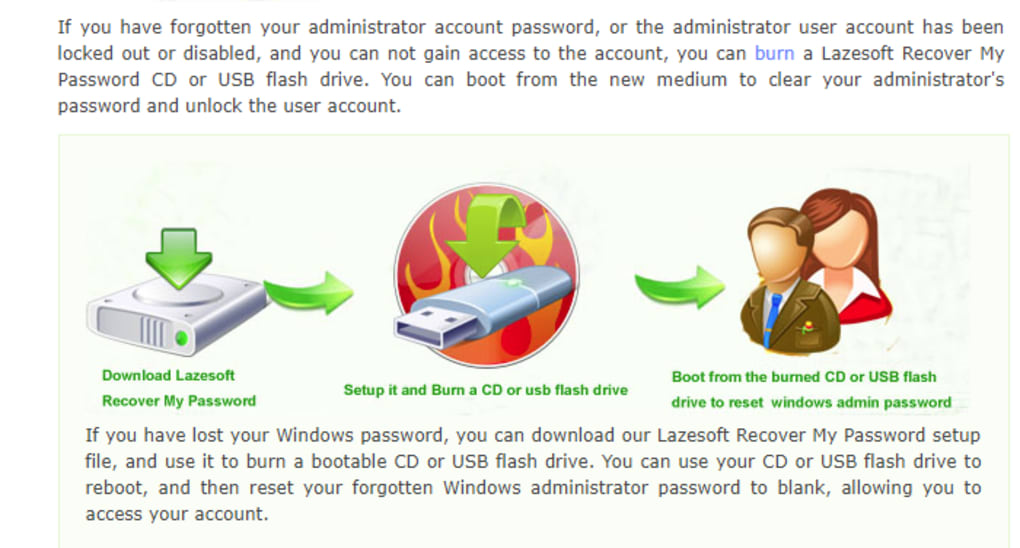
Installing Lazesoft Recover My Password is intentionally simple. After downloading the installer from the official website, run the setup.exe file and follow the on‑screen wizard. The installer automatically detects whether your system is 32‑bit or 64‑bit and places the appropriate binaries in the C:\Program Files\Lazesoft\RecoverMyPassword directory. Within minutes, the tool is ready to create bootable media. The wizard also offers an optional portable version that can be extracted to a USB stick without any registry changes, ideal for technicians who need a “plug‑and‑play” solution.
Creating Bootable Media
Once installed, launch the application and select “Create Bootable CD/USB.” Insert a blank CD/DVD or a USB flash drive (minimum 1 GB), choose the target device, and click “Create.” The software formats the media, copies the recovery environment, and adds the necessary drivers for the most common storage controllers. This process typically completes in under five minutes, even on slower USB 2.0 drives.
Running the Recovery Process
To reset a password, restart the locked computer and boot from the newly created media. The recovery environment loads a lightweight Linux kernel with a Windows‑aware file system driver. After the system boots, you’ll see a clean graphical interface with three main options: “Reset Password,” “Disable Expiration,” and “Lock/Unlock Account.” Choose “Reset Password,” select the Windows installation from the list, pick the user account, and type a new password. Confirm the changes, and the tool writes the new hash to the SAM file. Finally, remove the boot media and restart the computer – the new password will work immediately.
Operating System Compatibility
Lazesoft Recover My Password supports the following Windows versions:
- Windows 7 (SP1) – both 32‑bit and 64‑bit
- Windows 8 / 8.1 – both 32‑bit and 64‑bit
- Windows 10 – Home, Pro, Enterprise, Education (all builds from 1507 onward)
- Windows 11 – all editions, with full support for Secure Boot (when disabled for recovery)
The tool is not designed for non‑Windows platforms, but the bootable media can be used on any PC that supports standard BIOS or UEFI boot sequences. For systems with BitLocker enabled, Lazesoft will prompt you to provide the recovery key before accessing the SAM file, ensuring that encrypted drives remain protected.
Pros, Cons, and Frequently Asked Questions
Pros
- High success rate – 100 % password recovery claim for supported accounts.
- Intuitive wizard makes bootable media creation painless.
- Supports both local and domain administrator passwords.
- Additional account management tools (disable expiration, lock/unlock).
- Broad hardware driver support – IDE, SCSI, SATA, RAID.
- Unlimited licensing – perfect for large enterprises.
- Regular updates keep it compatible with the latest Windows releases.
- Signed executables reduce false‑positive antivirus alerts.
Cons
- Limited to Windows platforms; no macOS or Linux password recovery.
- Requires physical access to the machine to boot from CD/USB.
- BitLocker‑protected drives need the recovery key before proceeding.
- Interface, while functional, could benefit from a more modern design.
FAQ – Answers You Need
Can Lazesoft Recover My Password reset passwords for Microsoft accounts?
No. The tool works only with local Windows accounts and domain accounts managed by Active Directory. Microsoft (online) accounts must be reset through Microsoft’s web portal.
Do I need to purchase a license to use the software?
Lazesoft offers a free trial that includes full functionality for a limited period. For continuous use, a single‑purchase license is required, but it allows unlimited installations.
Is the bootable media creation safe for my data?
Yes. The creation process only writes to the external media. The recovery environment itself is read‑only until you confirm changes, ensuring your data remains untouched.
What if my computer uses Secure Boot?
Secure Boot must be temporarily disabled to boot the recovery media, as the environment is not signed with Microsoft’s Secure Boot keys. After the password reset, you can re‑enable Secure Boot without issues.
Can I use the tool on a server running Windows Server?
The current version is optimized for client editions of Windows. While it may work on Windows Server, Lazesoft recommends using their dedicated server‑oriented recovery solution for best compatibility.
Lazesoft Recover My Password delivers on its promise of rapid, reliable password recovery for Windows environments. Its added account‑management tools and broad hardware support make it a standout choice for both home users and IT departments. The only drawback is the lack of macOS support, but within its niche, the software excels.
Conclusion – Get Back Into Your System Quickly and Securely
When a forgotten password locks you out of critical files or an entire workstation, time is of the essence. Lazesoft Recover My Password offers a fast, secure, and user‑friendly solution that works across all modern Windows versions, supports both local and domain accounts, and adds valuable management utilities such as password‑expiration control and account locking. Its unlimited licensing model and robust driver set mean you can deploy it across an entire organization without worrying about hidden costs or compatibility headaches.
Because the tool runs from a bootable CD or USB, it never interferes with the running operating system, preserving data integrity while giving you full control over user accounts. Regular updates and signed binaries keep the application trustworthy in today’s security‑focused landscape. Whether you’re a home user stuck out of a personal laptop or an IT manager needing a reliable emergency reset kit, Lazesoft Recover My Password is a worthy addition to your toolkit.
Ready to regain access? Download Lazesoft Recover My Password now and follow the simple installation steps to create your bootable rescue media. Secure your workflow, eliminate downtime, and keep your Windows environment under your control.







